Five-minutes tutorial
The five-minutes tutorial gives you a brief introduction into modeling state machines with itemis CREATE by a simple example. It models a light switch, which has the states on and off. Operating the switch repeatedly turns the light on, off, back on again, and so forth. You can simulate this behavior in a dynamic statechart model (state machine model). Here's how it looks like:
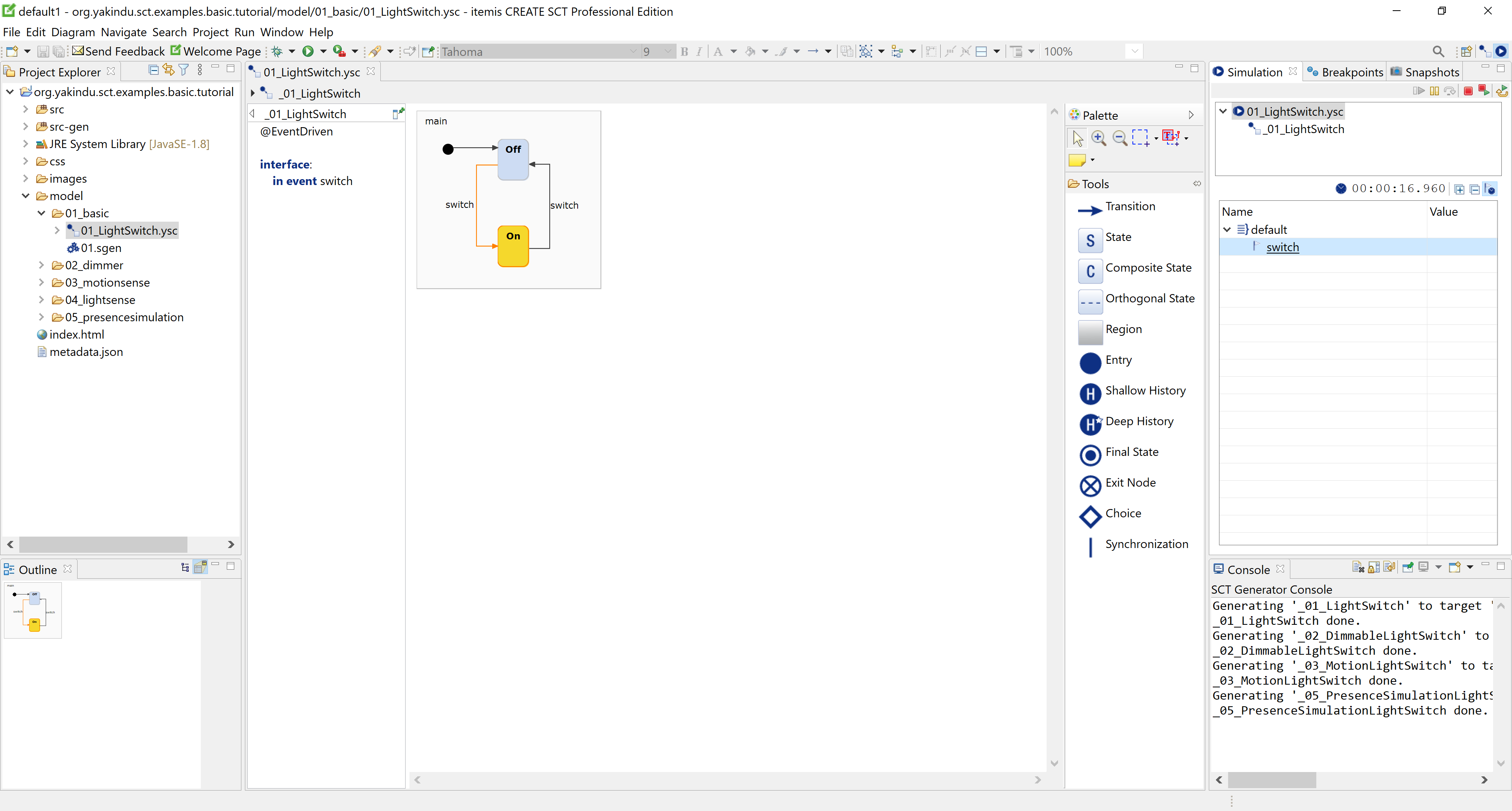
Interactive light switch statechart simulation
In the simulation screenshot above, the light switch is currently in the on state. To toggle the light switch, the user clicks on operate on the right-hand side of the window.
Importing light switch example
Now try this for yourself. We are assuming that you have already installed and started itemis CREATE. If you don't, please see the Installation Guide for details.
# If the "Welcome" page is still open, close it.
# In the main menu, select File → New → Example….
# In the dialog, select itemis CREATE Statechart Examples, then click Next >.
# The example wizard opens. If needed, follow the instructions to download the examples repository.
# On the left-hand side of the example wizard, select Basic Tutorial, then click Finish.
# The sample project named org.yakindu.sct.examples.basic.tutorial is created.
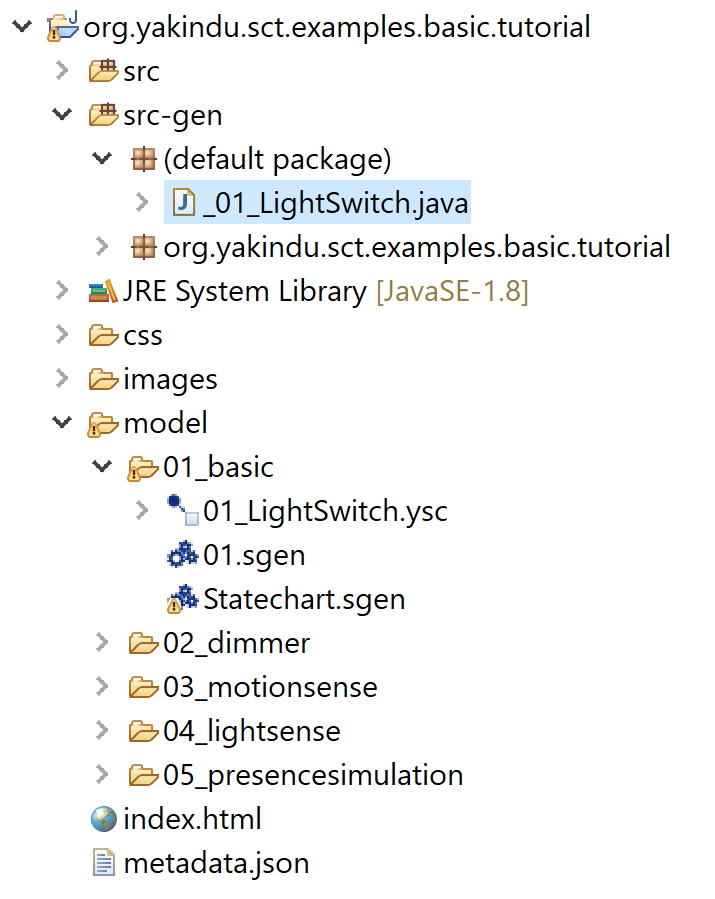
# In the project explorer on the left-hand side of the window, open the org.yakindu.sct.examples.basic.tutorial project by clicking on the small triangle left on the left of the project name ("org.yakindu.sct.examples.basic.tutorial"). Open the model folder and the 01_basic folder.
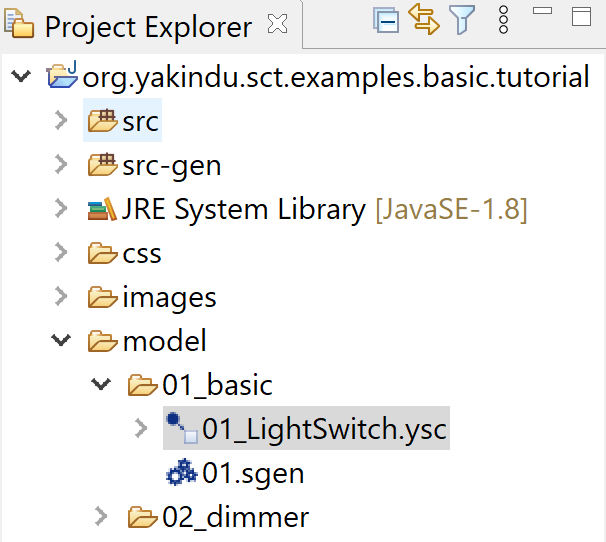
- The light switch statechart is defined in the file 01_lightSwitch.ysc. Double-click on this file to open the model.
Simulating the light switch
# Right-click on 01_lightSwitch.ysc and select Run As → Statechart Simulation in the context menu.
# The simulation starts and shows the light switch model in its off state. The rectangle named Off is highlighted in yellow, meaning it is the active state.

# At the right side of the window, the simulation view is located. In this view, you can change variable values and raise events during a simulation run. Click on the small triangle left from default to unfold the switch link. This link represents the switch event to switch the light on or off.

# Click on the switch link. The active state changes accordingly from Off to On.

- Click on switch again to switch off the light.
Generating statechart code
You have developed and tested your statechart model, and now you need it as a C, C, or Java implementation? itemis CREATE can create it for you.
As an example, we will take the light switch statechart and generate Java source code from it. Please proceed as follows:
# In the project explorer, right-click on 01_lightSwitch.ysc and select New → Code generator model in the context menu.
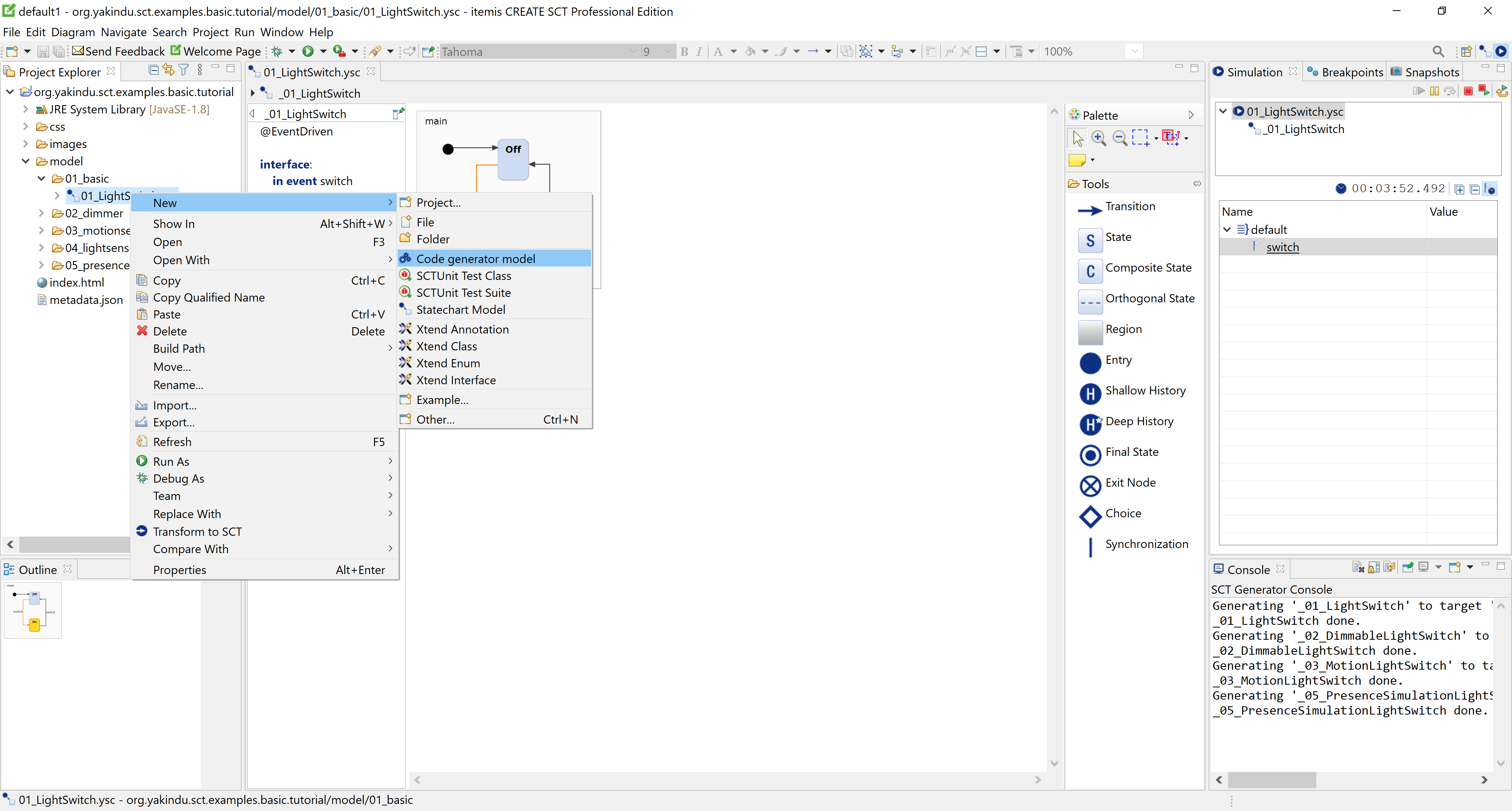
# In the dialog, replace Statechart.sgen by light_switch.sgen, then click Next >.
# In the next dialog, check the checkbox left from 01_lightSwitch.ysc under the 01_basic folder, then click Finish.
# Java classes implementing the statechart model are generated. You can find the generated source code in the folders src and src-gen.
That's it. If you want to know more, take the time and work through the Comprehensive Tutorial.